Capabilities and Plugins
Capabilities extend Skulk into a platform for services, tools, and applications. They can use the fabric's models and compute, integrate another service, and provide a purpose-built interface alongside callable operations. Inference is one foundation on which these applications can build.
| Term | Meaning |
|---|---|
| Capability | A declared operation or service the fabric can provide |
| Plugin | An installable package that supplies one or more capabilities |
| Capability node | A logical provider with its own identity, health, settings, and available actions |
| Satellite | The topology's representation of a capability node sharing a host with a Skulk compute node |
A capability node is not necessarily another physical machine. Multiple capability nodes can share a host. Some provide an application interface; others expose operations for clients and tools. Built-in speech providers use Skulk's own mounted model capacity, while plugins add independently packaged services.
Discover and open a capability
Open Cluster and look for capability nodes. On a host that also runs a Skulk compute node, capabilities appear as satellites beside that host. Select a satellite to see the provider's name, readiness, and available actions.
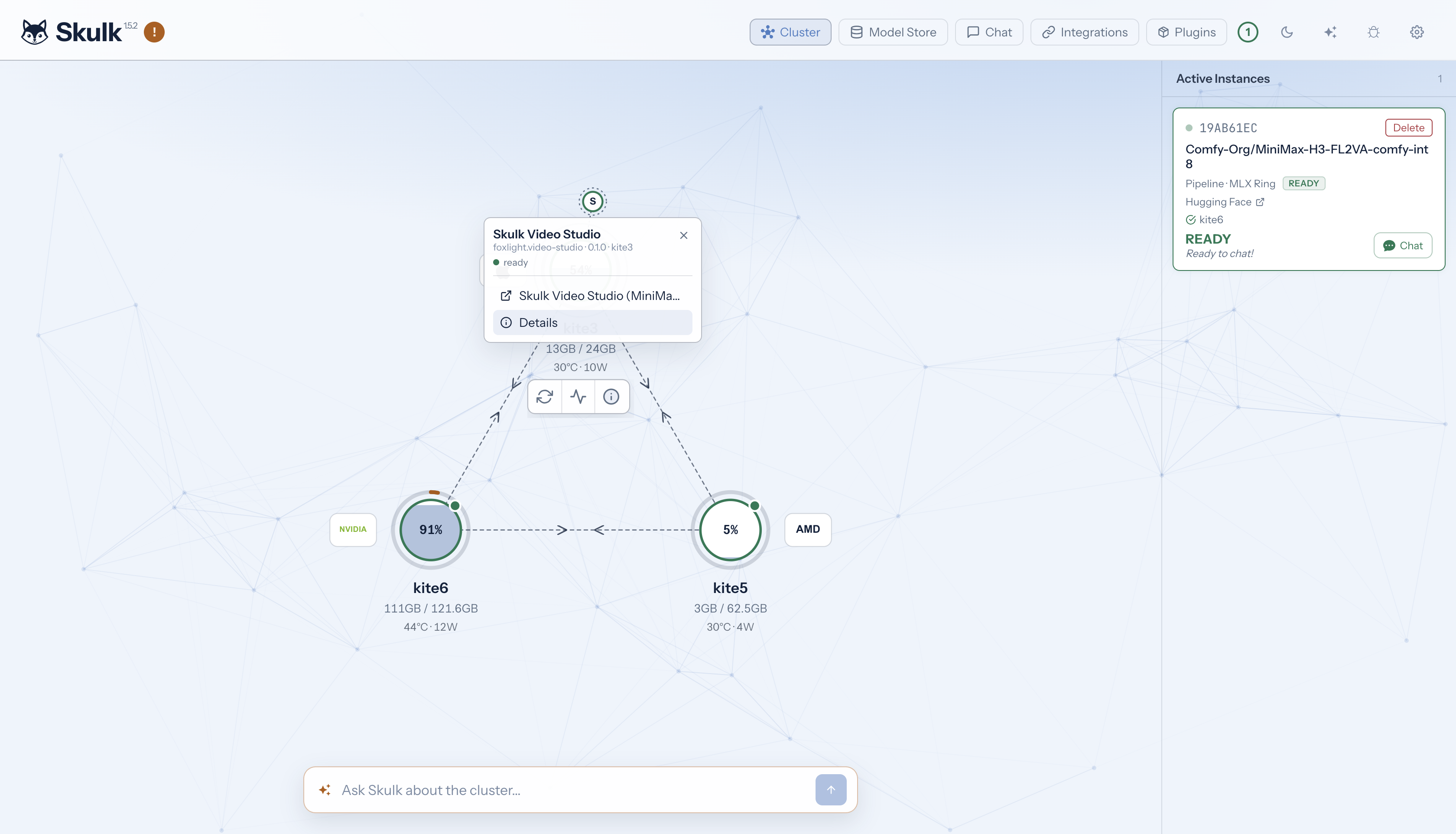
Choose the application link to open a ready interface, or Details to inspect the capability. Available actions come from the provider; a capability without an application interface can still expose useful operations. Opening an interface does not itself launch a model or submit work.
Application links must be reachable from your browser. When a capability's host runs Tailscale, Skulk gives the host's plugins its Tailscale address. A plugin built for this serves its screens there as well as on loopback, so any browser on your tailnet can open them, and the local network cannot. Tailscale's own access rules decide which of your machines reach the host at all. On a host without Tailscale, or for a plugin built before this, a surface on the host's loopback address needs a browser on that host; discovery alone does not make it remotely accessible. Configuration and management actions can also require access to the dashboard on the capability's host.
Example: Skulk Video Studio
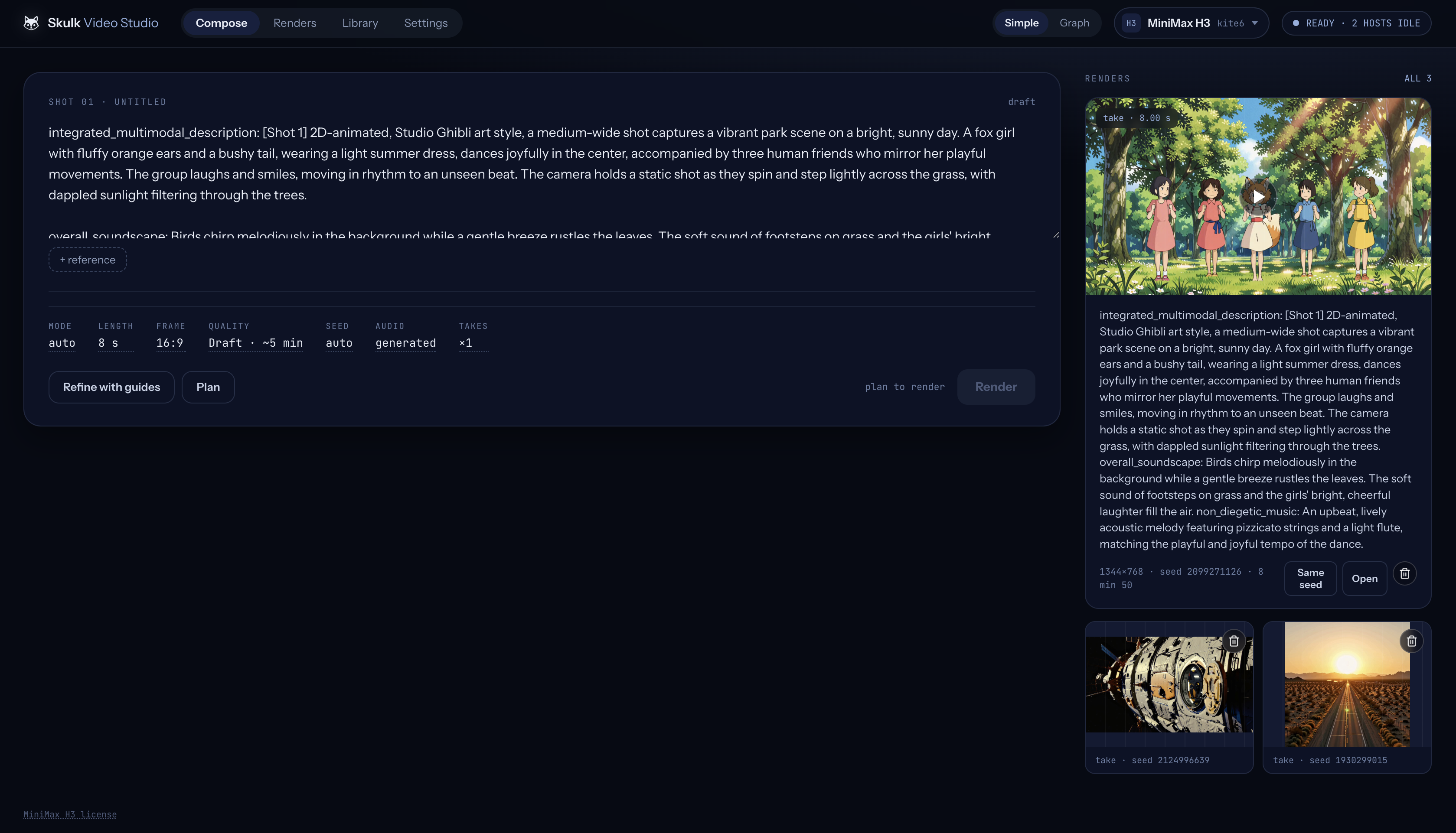
Skulk Video Studio shows how a plugin can deliver a complete application on the fabric. It provides a workspace for MiniMax H3 video creation, using Skulk's model inventory and video-job API, and a ready text model for optional prompt refinement. The Studio has its own interface, reference library, operation history, and saved takes. Its application process can run on a different machine from the model performing the render.
Compose a shot
Write the intended scene in Compose, add reference media when needed, and choose the available duration, framing, quality, seed, and audio settings. Refine with guides uses a ready text model to help structure the prompt. Plan resolves the request against the selected model and available capacity; review the plan before choosing Render.
Follow the work
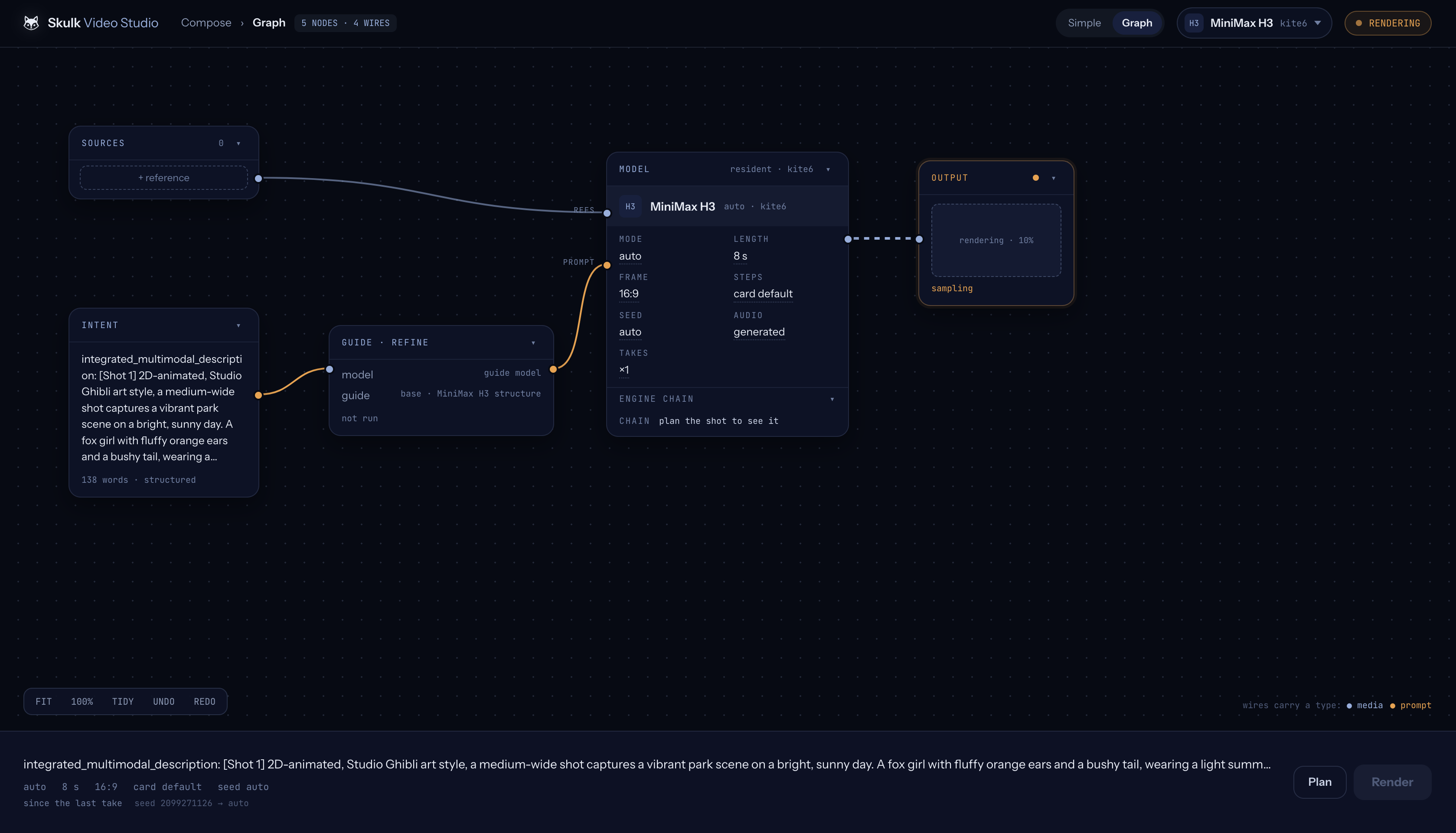
The Graph view presents the shot as connected sources, intent, refinement, model, and output. The output reports render progress while Skulk executes the video job. These are the application's workflow elements, distinct from the physical and capability nodes in Skulk's cluster topology.
Review and keep the result
Open a completed take in Renders to play it, inspect its request and seed, download it, or return to Compose. Keep protects a take from the Studio's normal retention pruning; Delete removes that take's stored media.
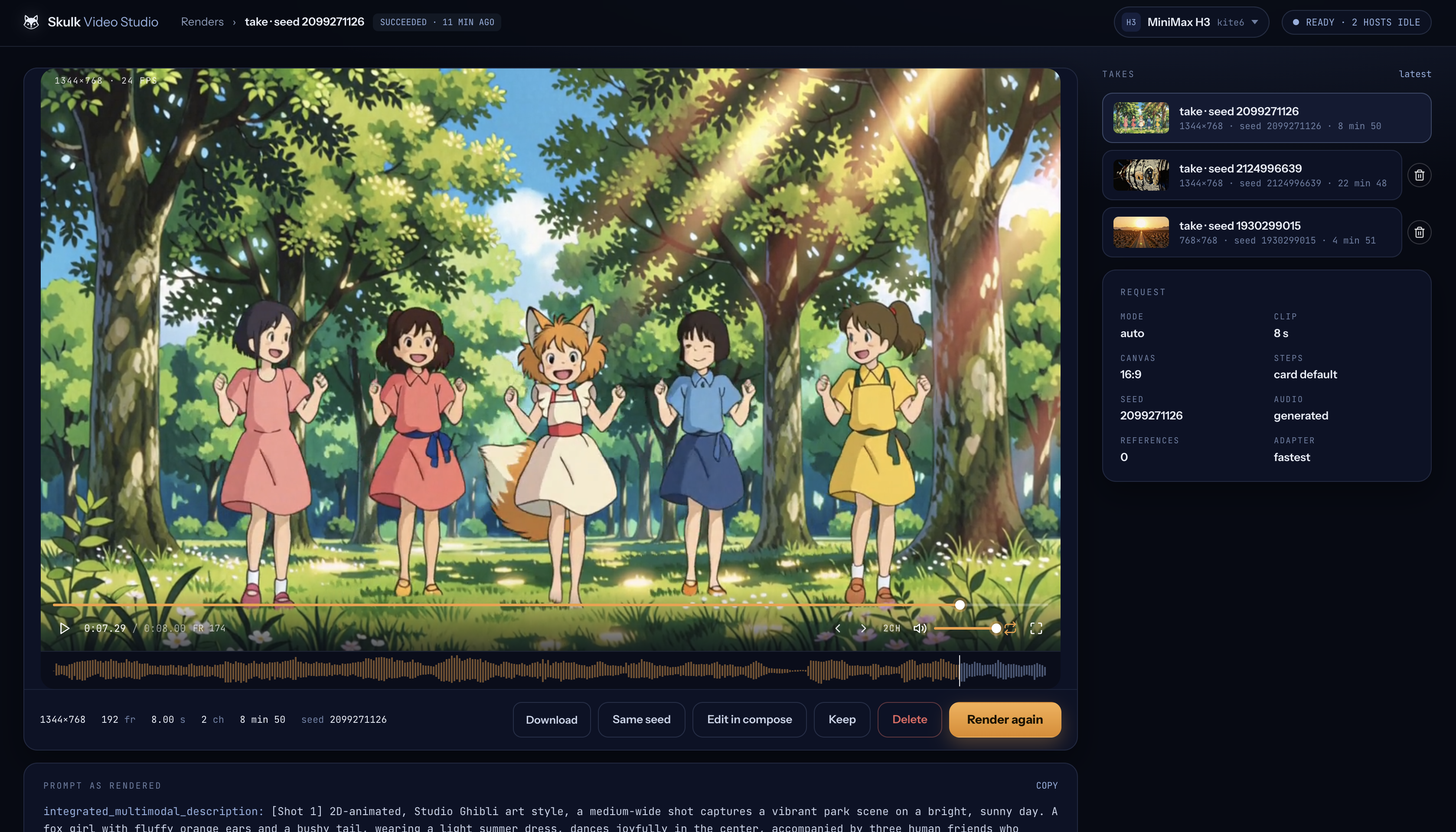
These are real application captures. Models, available controls, resource readings, and render times reflect that session.
The plugin exposes planning, readiness, rendering, prompt refinement, asset, and take-management contracts. Its UI is one way to use those capabilities. The application is packaged separately from Skulk core and calls Skulk through its APIs, illustrating how developers can build applications on the platform.
What the Studio needs
The Studio renders through Skulk, so the cluster must be able to serve MiniMax H3 before a render can start:
- A render node. A Linux node with an NVIDIA GPU (CUDA) or an AMD Strix
Halo (ROCm), with about 64 GB of GPU memory. The node installs the ComfyUI
engine that serves H3 (about 7 GB) the first time a video model is placed on
it;
uv run skulk doctorreports its state anduv run skulk doctor --fixinstalls it ahead of time. Apple Silicon nodes cannot render H3. - A placed model. Place a MiniMax H3 card (FL2VA or Ref2VA) from Model Store. Each is about 49 GB to download, and the first placement on a node also installs the video engine, which the placement preview mentions. Place it before installing the Studio; if the Studio was installed first and its setup check reports that no video model is placed, open its settings in Plugins, select Turn off, then Turn on once the model is ready.
- Licence terms. MiniMax H3 open-weight use is territorially scoped by its licence. The model card shows the notice before download.
- Optional: a ready chat model for Refine with guides.
Manage plugins
Skulk core owns discovery, routing, plugin management, and the dashboard. A plugin supplies its implementation, configuration schema, setup checks, and provider-specific policy. Use Plugins to install and manage these packages; use their topology actions to discover and open what they provide.
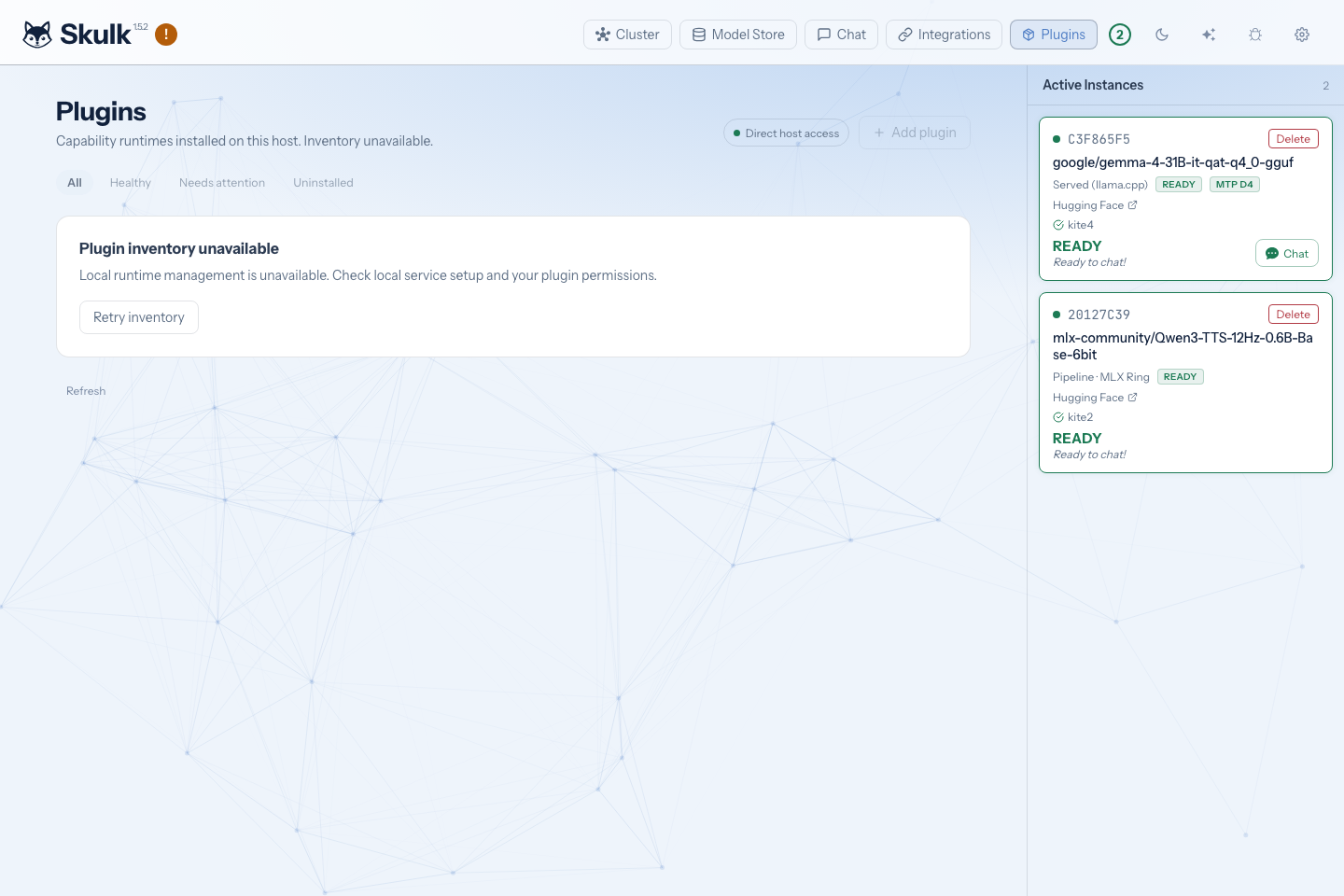
Each node manages its own plugins, and admits a browser that reaches it over Tailscale. So an owner on any tailnet machine can manage every node's plugins:
- Plugins lists the cluster's other nodes, each linking to that node's own Plugins page at its Tailscale address.
- A capability's Manage on entry, followed by its host's name, in its topology flyout and its details, opens that host's dashboard on the plugin.
A node that reports no Tailscale address is named without a link; open its dashboard on the node itself.
An installed plugin's drawer opens with its release ("Release 0.1.0 from example"), where it came from, and a status: Running, Stopped, Starting, Failed, Updating or Uninstalled. Its actions sit in one row:
- Update to, followed by the version, when a newer release built for this host is listed. It opens that release's review under Browse.
- Stop plugin stops all of its capabilities until Start plugin runs the same release again. Its settings and data stay. (Each capability node below has its own Turn on and Turn off.)
- Uninstall stops it and withdraws its capabilities, keeping its settings, credentials and records. An uninstalled plugin offers Reinstall, which starts the release it kept, and Remove everything, which deletes what it kept after a second confirmation; after that it can be installed fresh from Browse.
Details holds the release number, the installation id, the selected and active release fingerprints, the last local operation with Refresh status, and Choose another release, which inspects, stages and activates a release from the plugin's source.
Process separation helps lifecycle management; it is not a sandbox against malicious code running as the same operating-system user. Install bundles from publishers you trust.
Get a compatible plugin
Plugins come from the Foxlight capability store at skulkapps.foxlight.ai. Open Plugins, then Browse: it lists the store with nothing to set up, shows which releases fit this host, and installs one after you review its permissions. Check a plugin's supported platforms, permissions, required services, costs, and cleanup before installing.
Skulk verifies and renews the store's publisher trust by itself. A publisher can also give you a private catalog: an
address and the publisher trust to verify it, often as a single invitation
code. Add it under Browse with Add a private catalog; it replaces the
store as the host's catalog until you select Use the Foxlight store. Browse
lists the catalog's plugins and says which releases fit this host (see
From a catalog). A plugin installed from the store keeps
running as Skulk renews the store's trust for it; if the store revokes its
publisher or release, it stops. From a terminal,
skulk-plugin-service catalog lists the releases that match this host, and
skulk-plugin-service install-plugin --from-catalog BUNDLE_ID installs one
through the same consent steps as a single release (prefix both with
uv run from the Skulk directory on a source install). See
Extensions.
The RunPod cloud-capacity plugin is distributed privately to owners with access. Its supplier must provide the compatible release, trusted publisher information, download access, and complete administration handoff. You do not need to clone its private source repository for ordinary use.
Install and enable
Open Plugins on the host that will manage the installation. Initial service setup and publisher trust require owner access; a paired browser cannot grant itself that authority.
The first time Plugins opens on a host, Skulk sets up that host's
plugin-management service: a per-user service (Apple Silicon macOS, or Linux
with systemd) that runs under your account alongside Skulk. It needs no terminal and
no administrator password; the first setup copies Skulk's environment into a
verified manager runtime and takes a few minutes, and Plugins shows its
progress. From a terminal, uv run skulk-plugin-service setup runs the same
setup and uv run skulk-plugin-service status shows its state. A host that runs
unattended can use skulk-plugin-service setup --system instead, which registers
a system service and asks for your administrator password once (see
Install).
From a catalog
-
Open Plugins, then Browse. A host on the built-in store lists it right away. To use a private catalog instead, select Add a private catalog (on a build without the store, the form opens directly), paste the invitation code from the publisher (it starts with
skulk-catalog:), or enter the catalog address, publisher name and publisher key, then select Connect. The code carries no authority of its own: every release is still verified against the publisher key before anything installs. Use the Foxlight store returns the host to the built-in store. -
Each card is one plugin. Review and install opens its review. An installed plugin with a newer release that fits this host offers Review update instead, including one that stopped fitting after a Skulk update. A card that reads Not built for this host has no release for this host's Skulk build or platform; its publisher has to build one.
-
The review shows what the release's signed listing says: publisher, version, download size, platforms, permissions, the screens it opens, the capabilities it adds, and whether any of its actions can spend money. Accept the permissions, then select Install or Update.
-
The page follows the download, staging, and activation. You can leave it: when you return in the same browser, Browse picks the install up where it was and reads its progress back instead of starting it again. Once it runs, a plugin that needs no settings turns on by itself as part of the install you accepted, and the page shows Turning it on as its last step. This happens once per install: reloading the page does not turn it on again, and an update turns back on only the nodes you had turned on before it, so a node you turned off stays off, even one that also needed settings.
If the download or the preparation of its runtime stops, the page says which and offers Retry. The plugin's card under Installed reads Install needs a retry and offers the same Retry, and its Browse card offers Resume install rather than a second installation beside it. A first install still under way on the host, even one started from another browser, shows Show progress on its card instead of being offered again. A retry downloads the same signed release again and follows it through activation to running. It carries the permissions you accepted when this browser started the install; from another browser, the release's permissions are shown again to accept first. A stopped first install you no longer want can be removed from its card with Remove this installation.
-
The install then continues on the plugin's own page under Installed, which shows what each of its nodes reports and offers one next step:
- Open settings when a node needs settings or credentials. It opens that node's settings, with the plugin's own setup checks beside them.
- Turn on when a node is only turned off, for example after you turned it off, or when the host refused to turn it on after the install. Turning it on runs the plugin's setup checks again; if the host refuses, the page shows its reason and runs the setup checks so you can see what is missing.
- Open, followed by the screen's name, once it reports ready. Screens open in a new tab; nothing of the plugin is shown inside the dashboard. You can also open them from the plugin's node in the Cluster view.
Done returns to the list of installed plugins. An installed plugin's Browse card says what it needs: Open, followed by the screen's name, opens a running plugin in a new tab; Set up opens this page when a node is turned off, needs settings or stopped; Manage opens it otherwise, such as while the plugin starts.
An update replaces the release on the same installation; its settings and saved work stay.
From a release source
- In Add plugin, enter the supplied release source, metadata filename, publisher trust, and feed credential where required.
- Save the source and inspect the release. Review its signature, compatibility, expiry, and permissions before downloading.
- Download and install, then accept the reviewed permissions and activate the staged release.
- Configure the capability, supply credentials through the separate credential controls, complete its setup actions, and select Check setup.
- Correct any reported issues and select Turn on in its settings once checks pass.
A node's settings show its title, version and status, then its settings form,
its setup checks, credentials and setup actions. The form renders each setting
the plugin declares, with the plugin's description as help, and an optional
setting left empty is saved as empty (null). Turn on and Turn off send
no settings, so they work even for settings the dashboard cannot render; they
wait only for unsaved changes to be saved or discarded, and for a reload when
another operator changed the node.
Installation, activation, configuration, readiness, and enablement are different states. An installed plugin can expose setup controls without advertising a ready capability. Credentials are write-only through management: read responses show requirements and readiness, not the secret values.
If a download or setup request loses its connection, inspect the existing operation and its recovery action. Accepted work may continue after the browser closes; creating another installation is not a safe way to resume it.
Permissions and remote management
Browser access supports three separate grants:
| Scope | Authority |
|---|---|
plugins:read | Read installation state, checks, setup progress, and proposal reviews |
plugins:manage | Perform supported configuration and management actions |
plugins:approve | Approve an exact reviewed proposal or a setup action that requires approval |
Ordinary pairing grants none of these automatically. Trust setup and changes to credential destinations remain direct-owner operations. Plugin management does not imply permission to spend money.
Example: adding cloud GPU capacity
The RunPod plugin can prepare a temporary GPU for a selected model, join that capacity to Skulk, and make the ready model available through ordinary inference. The plugin's owner distribution requires a supported management host and a separate cleanup host, a RunPod account and API key, a verified secure connection between hosts, and explicit spending and lifetime limits. The cleanup host must remain available until outstanding resources are confirmed gone.
After the supplier's setup procedure, enable Intelligent Fabric in Skulk Settings and enable proposals in the plugin's configuration. These controls permit proposal preparation, not purchases.
A typical request to the Skulk conversation is:
Prepare a RunPod capacity proposal for MODEL_ID with an 8192-token context. Show the hardware, cost limits, and cleanup terms for review.
Replace MODEL_ID with an exact catalog selection. This example does not imply
that every model has suitable cloud capacity or that every placement shortfall
automatically rents a GPU.
Open Plugins → Review proposals, refresh, and review the retained proposal. Check the model, context, hardware, location, price, maximum cost, campaign usage, resource lifetime, and approval expiry. Approve and execute reviewed proposal is the distinct action that can begin paid work. Keep its operation ID and follow progress; a created Pod is not yet a ready model. Start chat only once the requested model instance reports ready.
If approval or acquisition has an uncertain result, observe that same operation. Do not submit another acquisition to retry an ambiguous create. Proposal records, approval history, and cleanup receipts must be preserved across restarts.
Finish work and confirm cleanup
For a cloud rental, prepare and review a release proposal, approve it, and follow cleanup until the provider confirms the resource is absent. An acknowledged delete is not proof of absence. Independent expiry cleanup retains its obligation if the management host stops, but provider outages can delay observation or termination; the deadline is not a guaranteed billing cutoff.
Stop plugin and Uninstall withdraw future plugin work. Neither confirms that an existing cloud resource is gone. RunPod Network Volumes are separate storage resources and are not removed by Pod cleanup. Use the supplier's recovery instructions before purging installation state or replacing an owner.
For capability authors
Skulk exposes generic capability discovery and call contracts alongside separate plugin-management APIs. Implementations should declare their schemas, effects, readiness, bounds, and lifecycle explicitly. Model tools can prepare supported proposals, but the provider's authority checks remain responsible for execution. See Extensions, the Architecture reference, and the API guide for core contracts.
A capability implementation declares its operations and schemas, reports readiness, and defines the interfaces and actions its node exposes. Its plugin packages that implementation for installation and lifecycle management. Keep application logic in the plugin and use Skulk APIs for compute and model jobs, as Video Studio does. Distribution of an individual plugin does not imply that its source or all authoring tools are public; obtain the applicable SDK and release tooling through the publisher's supported developer channel.